

You bought a good TV, plugged in the console, and something still feels off. Your character reacts a beat late. Fast pans smear. Dark corners of a horror game turn into flat grey mush. Nine times out of ten, the hardware is fine and the settings are the problem. Most TVs ship tuned for a bright showroom and for movies, not for a controller in your hands.
This guide walks through the best TV settings for gaming in the order that actually matters: first cut input lag, then get the signal right, then make the picture look the way the developers intended. The menu names differ between brands, but the ideas are the same on almost every set made in the last five years.
Start with the right HDMI port
Before touching a single picture setting, check which port the console or PC is using. Many TVs have only two HDMI 2.1 ports, sometimes just one, and one of them often doubles as the eARC port for a soundbar. The back panel or the manual will label them as 4K 120Hz, HDMI 2.1, or with a small game controller icon.
If your PS5, Xbox Series X or graphics card is plugged into an older HDMI 2.0 port, you are capped at 4K 60Hz and may lose variable refresh rate entirely. Swapping the cable to the correct port is free and takes thirty seconds. Use the cable that came with the console, or one certified as Ultra High Speed. A cheap, old cable is a common reason a TV refuses to offer 120Hz.
Then go into the TV’s input settings and turn on the enhanced signal option for that port. Samsung calls it Input Signal Plus, LG uses HDMI Ultra HD Deep Colour, Sony labels it Enhanced format, and on many Google TV and Hisense sets it sits under HDMI 2.1 mode or HDMI EDID. Without it, the TV tells the console it can only handle a basic signal.
Game Mode: the single biggest fix for input lag
Input lag is the delay between pressing a button and seeing the result on screen. A TV in a normal picture mode runs every frame through noise reduction, motion processing and sharpening before showing it. That processing can easily add 50 to 100 milliseconds. You feel it as heaviness, especially in shooters, fighting games and rhythm games.
Game Mode strips most of that processing out. On a modern TV it usually brings lag down to somewhere around 10 to 20 milliseconds at 60Hz, and lower still at 120Hz. Independent testers such as RTINGS, which measures input lag on every TV it reviews, consistently show the gap between a normal mode and Game Mode is large on the same set.
Let the console switch it for you with ALLM
Auto Low Latency Mode, or ALLM, is part of the HDMI 2.1 feature set. When the console starts a game, it signals the TV to jump into its low-latency mode, and switches back when you open a streaming app. The HDMI Licensing Administrator’s ALLM overview explains how the handshake works. Look for it under names like Auto Game Mode, Instant Game Response or simply ALLM, and turn it on. On the console side, make sure ALLM or its equivalent is enabled too.
Check what Game Mode turned off
Some TVs keep a few extras switched on even in Game Mode. Dig into the advanced picture menu and confirm these are off or at their lowest setting:
- Motion smoothing or motion interpolation (TruMotion, Motion Xcellence, Auto Motion Plus)
- Noise reduction and MPEG noise reduction
- Dynamic contrast boosts that are not part of HDR tone mapping
- Any “reality creation” or “super resolution” style upscaling, if your TV lets you disable it
Motion smoothing is the worst offender. It invents in-between frames, which needs the TV to hold frames back, and that delay lands straight on your reaction time.
Refresh rate and VRR: smoother, without tearing
If your TV and console both support 120Hz, use it in games that offer a performance mode. Doubling the frame rate halves the time each frame stays on screen, so the game feels more responsive even before you count lower input lag.
Variable refresh rate is the other half of the story. Games rarely hold a perfectly steady frame rate. When the console delivers 53 frames in a second to a TV that expects exactly 60, you get stutter or a visible tear line. VRR lets the TV wait for each new frame instead of running on a fixed clock. The HDMI Forum’s VRR page covers the basics. Many TVs also support AMD FreeSync or NVIDIA G-Sync Compatible for PC players.
Turn VRR on in the TV menu (sometimes it is inside the Game Mode panel) and on the console. On the PS5 it lives under Screen and Video; on Xbox it is under the video modes in TV and display options. One honest caveat: on some OLED and VA panels, VRR can make very dark scenes flicker slightly when the frame rate swings a lot. If that bothers you in a specific game, turn VRR off for that title rather than for everything.
Picture settings that make games look right
With the lag sorted, you can tune the image. The goal is accuracy, not maximum punch. Game artists grade their work on calibrated monitors, and a TV pushed to vivid colours and maximum sharpness hides detail they spent months on.
Sharpness: lower than you think
This is the setting people get wrong most often. High sharpness adds bright halos around edges and makes fine textures look crunchy. On most TVs, the neutral point is zero or close to it; on a few older Samsung and Sony models it is somewhere in the low teens on a scale of 20 or 50. Find the lowest value where text still looks crisp and leave it there. If the picture looks soft, the culprit is usually the game’s own resolution or anti-aliasing, not the TV.
Colour temperature and colour space
Set colour temperature (or white balance) to Warm, Warm 2, or Expert depending on the brand. It looks slightly yellow for the first few minutes because showroom modes run very blue. Give your eyes a day. For colour space, Auto is the right choice on almost every TV; forcing a wide native gamut makes skin tones look sunburned in SDR games.
Brightness, contrast and black level
Brightness on most TVs actually controls black level, not light output. Set it so the darkest shadows are just distinguishable from pure black. Too high, and blacks turn grey; too low, and you lose detail in caves and night scenes. The backlight or OLED light setting controls actual brightness. Raise it for a sunny room, lower it for evening play.
The HDMI black level (sometimes RGB range) needs to match between the console and the TV. If both are on Auto, you are usually fine. If blacks look washed out or shadow detail is crushed, one side is set to Limited and the other to Full. Match them.
HDR gaming: use HGIG when you can
HDR is where TV settings make the biggest visual difference, and where the defaults are most likely to lie to you. Many TVs apply their own dynamic tone mapping, brightening the whole image to look impressive. It can look great for a minute, then you notice the sky has lost its clouds and highlights all clip to the same white.
HGIG, short for HDR Gaming Interest Group, is a setting on many LG, Sony and Samsung sets that turns off the TV’s own tone mapping and lets the console handle it. To use it properly:
- Choose HGIG in the TV’s HDR tone mapping or dynamic tone mapping menu.
- Run the console’s system-level HDR calibration (PS5 under Screen and Video, Xbox via the HDR Game Calibration app).
- Adjust the per-game HDR sliders when a game offers its own calibration screen.
If your TV has no HGIG option, try tone mapping off first, then compare it with the dynamic setting in a scene with bright sky and dark shadows. Pick whichever keeps detail at both ends.
Small extras that help more than they should
A few settings sit outside the picture menu but still shape how a game feels:
- Energy saving and eco modes: These dim the screen based on content or room light. Turn them off for gaming; they cause distracting brightness pumping.
- Black frame insertion: Some TVs offer it inside Game Mode to cut motion blur. It reduces brightness and can add flicker, so try it in a racing game and decide for yourself.
- Game bar or game dashboard: Most recent TVs show an overlay with live frame rate and VRR status. It is the quickest way to confirm 120Hz and VRR are actually active.
- Room setup: Lamps reflecting in the screen hurt contrast more than any setting. If you are building a dedicated space, our guide to home game room ideas on a realistic budget covers lighting and seating placement.
A quick setup routine you can repeat
When you bring home a new console, switch rooms, or after a firmware update resets things, run through this short list:
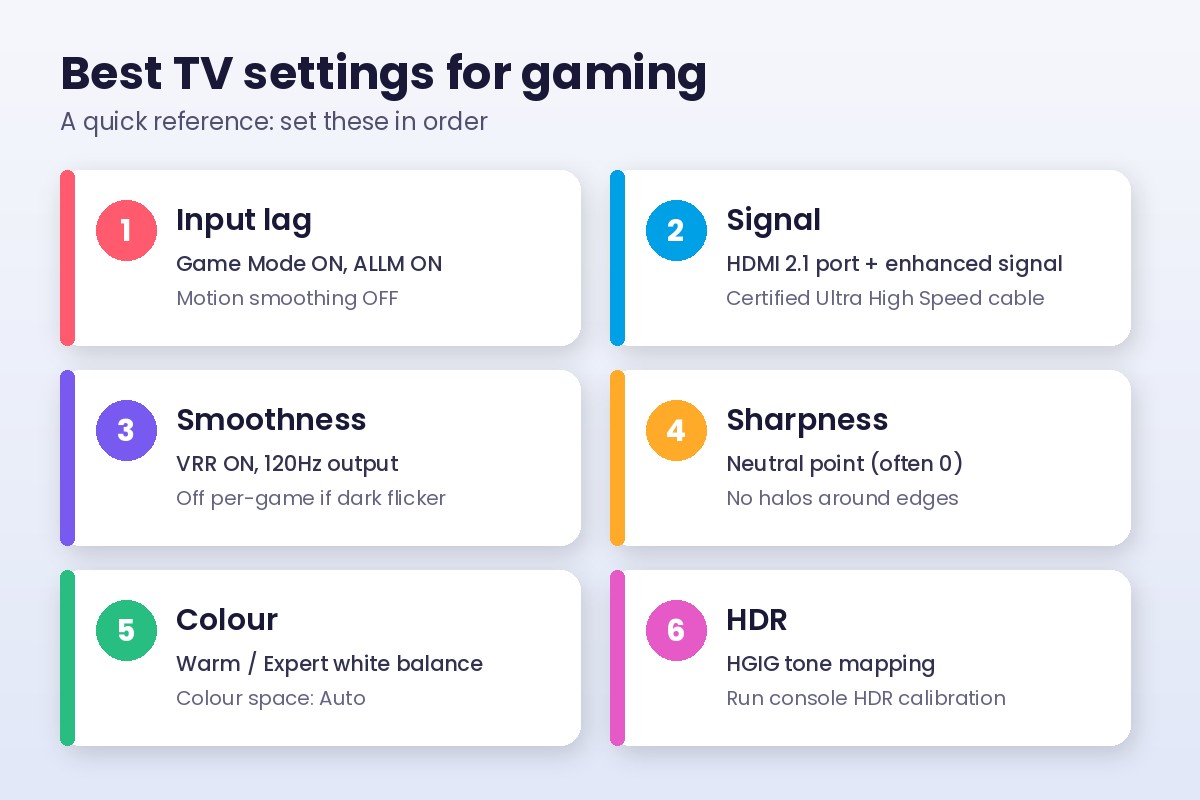
- Console in an HDMI 2.1 port with a certified cable; enhanced signal mode on.
- Game Mode on, with ALLM enabled on both TV and console.
- Motion smoothing and noise reduction off.
- VRR on; 120Hz enabled in the console’s video output.
- Sharpness at the neutral point; warm colour temperature; colour space on Auto.
- HGIG on, then run the console HDR calibration.
- Energy saving off; check the game bar to confirm everything stuck.
That is ten minutes of menu diving for a TV that feels sharper in your hands and more faithful on screen. If you game in a basement, the same principles apply, with extra attention to ambient light. Our piece on turning an unused basement into living space has useful notes on planning lighting before the drywall goes up.
One last point: write your final settings down or snap a photo of each menu. TVs occasionally reset after software updates, and rebuilding a tuned picture from memory is no fun when you just want to play.